Overview
This guide walks you through adding voice and video calling capabilities to your Android application using the CometChat UI Kit.
enableCalling: true makes the Calls SDK dependency mandatory — otherwise the app crashes at
launch. With the flag set, CometChatUIKit.initFromSettings() calls initCometChatCalls(), which
throws if com.cometchat:calls-sdk-android is absent:The crash happens in onCreate, before any UI renders — the flag name gives no hint that a
dependency is implied. Change the flag and the dependency together, or leave enableCalling as
false in an app that does not use calling.Add the Calls SDK
Add the CometChat Calls SDK dependency alongside your chosen UI Kit module:
Kotlin (XML Views)
Jetpack Compose
Kotlin (XML Views)
Jetpack Compose
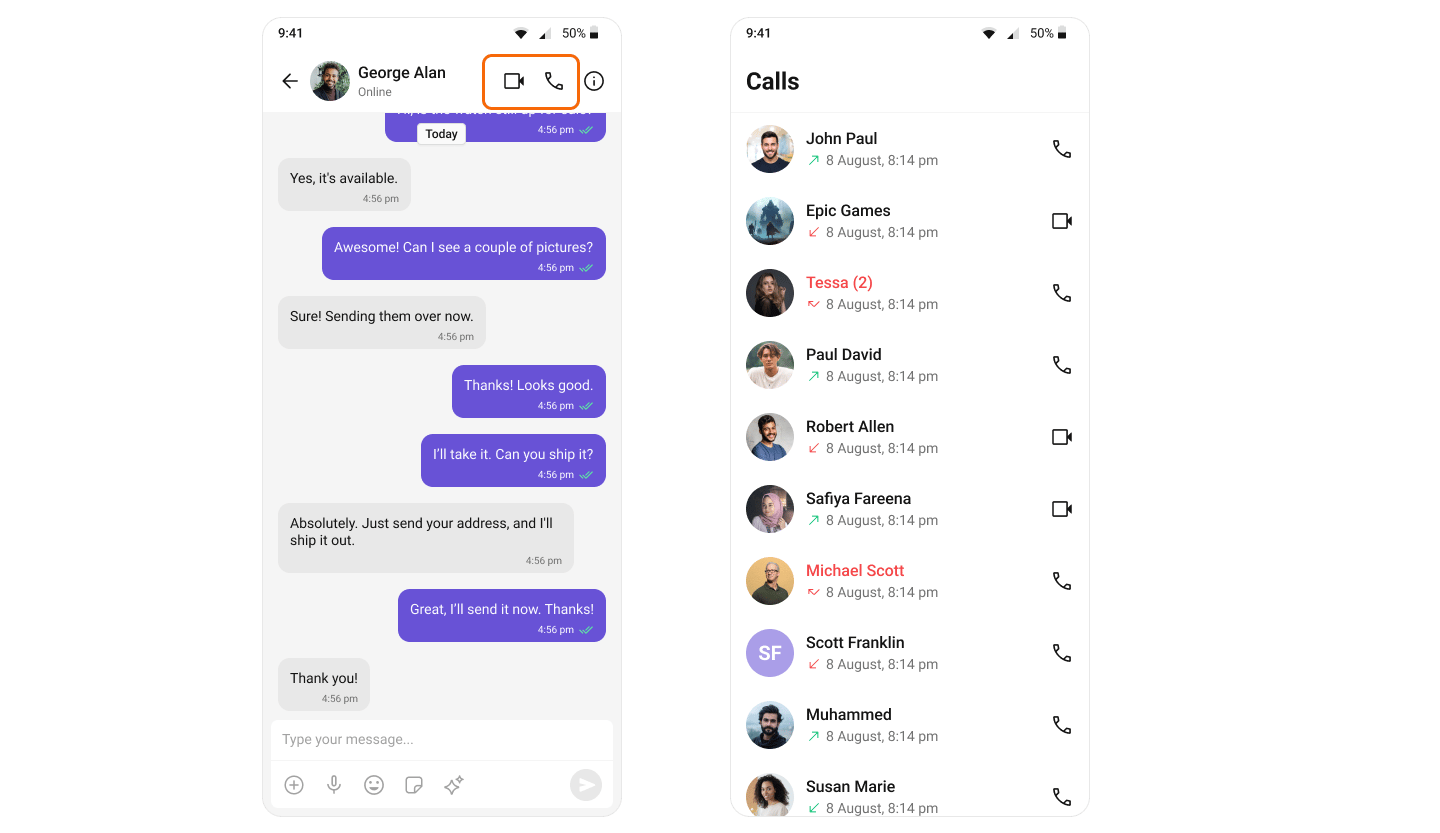
The call buttons appear automatically — CometChatMessageHeader detects that calling is enabled, so no extra code is needed.
The CometChatMessageHeader composable hides the call buttons by default (hideVoiceCallButton and hideVideoCallButton both default to true). Show them explicitly: Enabling calling in an app that already has logged-in users requires a re-login. CometChatUIKit.login() short-circuits when the same uid already has a persisted session — it returns onSuccess without logging the Calls SDK in, so the Calls SDK has no auth token and CometChatCallLogs shows a silent error state (logcat: User auth token cannot be null). After calling is first enabled, log out and log in again (CometChatUIKit.logout(...) then CometChatUIKit.login(...)), and wire onError on CometChatCallLogs during development so this failure is visible.
Set Up Call Listener
To receive incoming calls globally in your app, add a CallListener before initializing the CometChat UI Kit. We recommend creating a custom Application class:
Kotlin (XML Views)
Jetpack Compose